> For the complete documentation index, see [llms.txt](https://kb.linknlink.com/isg/llms.txt). Markdown versions of documentation pages are available by appending `.md` to page URLs; this page is available as [Markdown](https://kb.linknlink.com/isg/advanced-features/home-assistant/accessing-home-assistant.md).

# Accessing Home Assistant

1. Check the status of iSG Home Assistant.
   * When iSG first launches the HA service, it takes about 15 minutes to start up.&#x20;
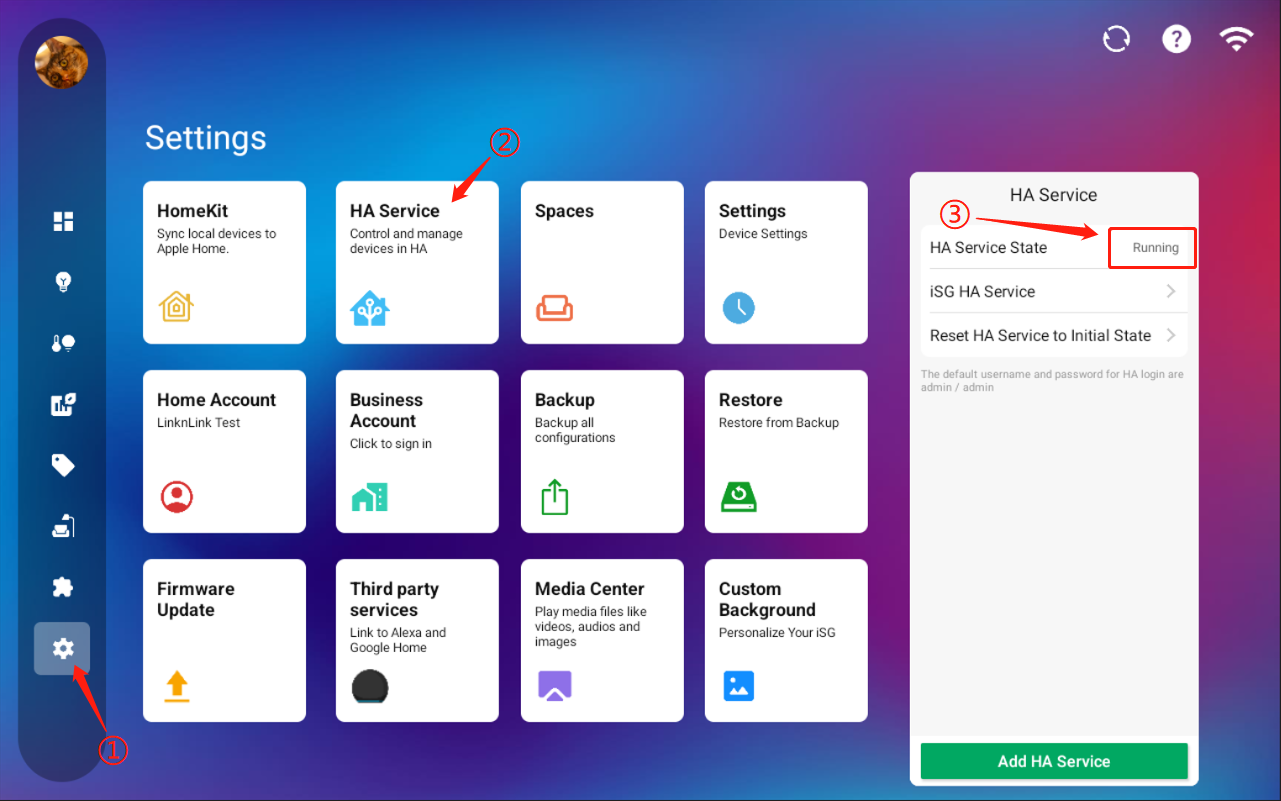
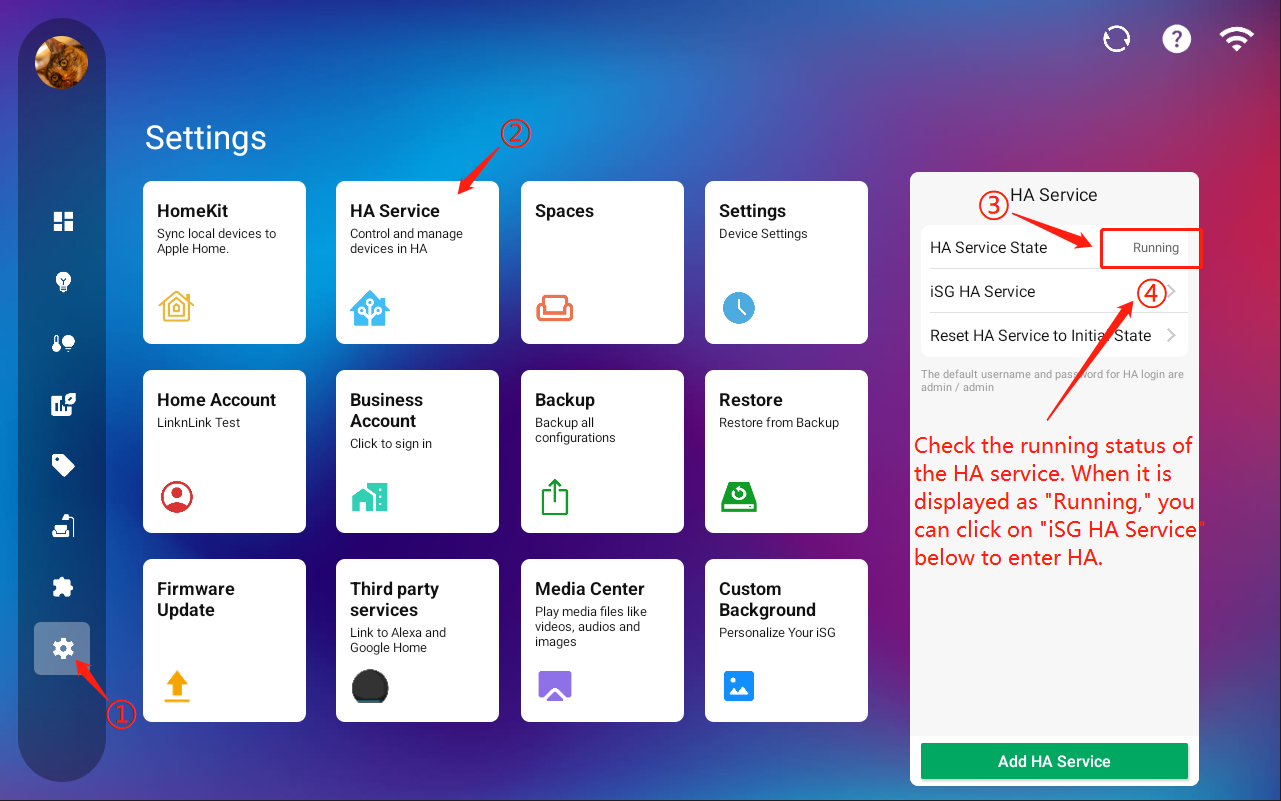
   * Check iSG - settings - HA services - the details page on the right should display "running."
   * Then, use the HA add-on to log in with the credentials (if you do not have a HA account, you can use the default system username and password: admin/admin to log in).

<figure><img src="/files/QzAczJsivM4h0vxg68fr" alt=""><figcaption></figcaption></figure>

2. Access HA through iSG

* Access HA through the Opera browser in iSG:&#x20;

  When the HA service status in Settings shows "Running", it means you can click on "iSG HA Service" below to enter HA(If you have not installed the HA APK, then by default, you will access HA through Opera from here).

<figure><img src="/files/XpWf4jf2qNESoEvyhGqB" alt=""><figcaption></figcaption></figure>

* Access HA through the Home Assistant app within iSG

  In the iSG, click on the navigation bar on the left, select "Add-Ons," and then find the "Home Assistant" card to download and install the service.

<figure><img src="/files/3CWYXaxRlmT89Dpu1Lfc" alt=""><figcaption></figcaption></figure>

&#x20;     After the installation is successful, click "open" to enter HA (Home Assistant).

<figure><img src="/files/Yjy1EzdCRPuEHQhlLRoI" alt=""><figcaption></figcaption></figure>

*<mark style="color:red;">Note:</mark>*

*<mark style="color:red;">In the HA App, do not click the back button. If you wish to exit the app, click the small round button in the center of the menu bar at the bottom of the screen.</mark>*

3. Access HA through a PC browser

&#x20;    1\) The PC must be on the same local network as the iSG.&#x20;

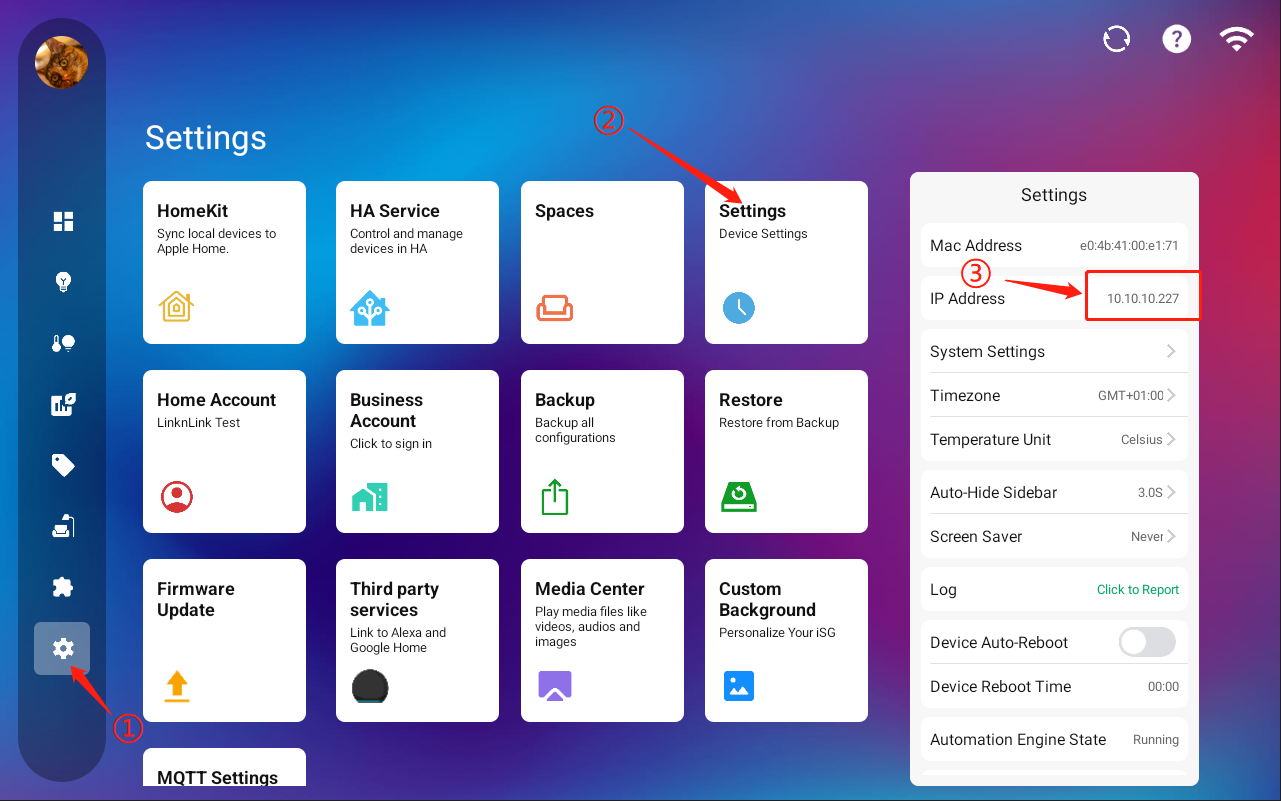
&#x20;    2\) Find the IP address of iSG.

<figure><img src="/files/ouTL510uhPgQsnRNS4GO" alt=""><figcaption></figcaption></figure>

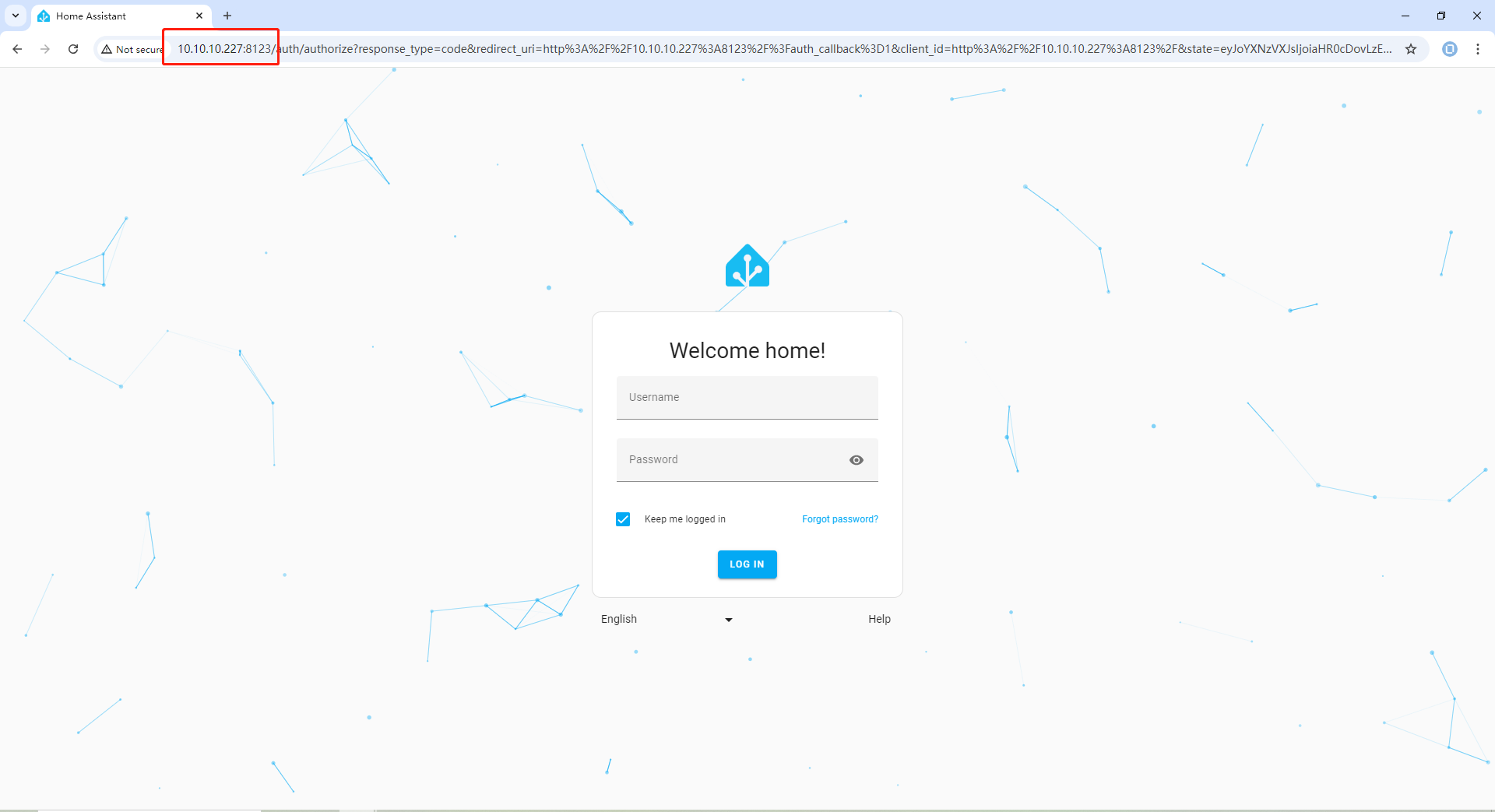
&#x20;    3\) Open a browser on the PC and enter "\[IP address of iSG]:8123" to visit Home Assistant, for example, 10.10.10.227:8123.
<figure><img src="/files/MHit1v0r63DM835gwIxX" alt=""><figcaption></figcaption></figure>


---

# Agent Instructions
This documentation is published with GitBook. GitBook is the documentation platform designed so that both humans and AI agents can read, navigate, and reason over technical content effectively. Learn more at gitbook.com.

## Querying This Documentation
If you need additional information that is not directly available in this page, you can query the documentation dynamically by asking a question.

Perform an HTTP GET request on the current page URL with the `ask` query parameter, and the optional `goal` query parameter:

```
GET https://kb.linknlink.com/isg/advanced-features/home-assistant/accessing-home-assistant.md?ask=<question>&goal=<endgoal>
```

`ask` is the immediate question: it should be specific, self-contained, and written in natural language.
`goal` is optional and describes the broader end goal you are ultimately trying to accomplish on behalf of the user. GitBook uses it to tailor the answer towards what is most useful for that goal.

The response will contain a direct answer to the question and relevant excerpts and sources from the documentation.

Use this mechanism when the answer is not explicitly present in the current page, you need clarification or additional context, or you want to retrieve related documentation sections.