> For the complete documentation index, see [llms.txt](https://kb.linknlink.com/isg/llms.txt). Markdown versions of documentation pages are available by appending `.md` to page URLs; this page is available as [Markdown](https://kb.linknlink.com/isg/getting-started/start-to-use/sign-up-and-sign-in.md).
# Sign-Up and Sign-In
## 1. Connect to Internet
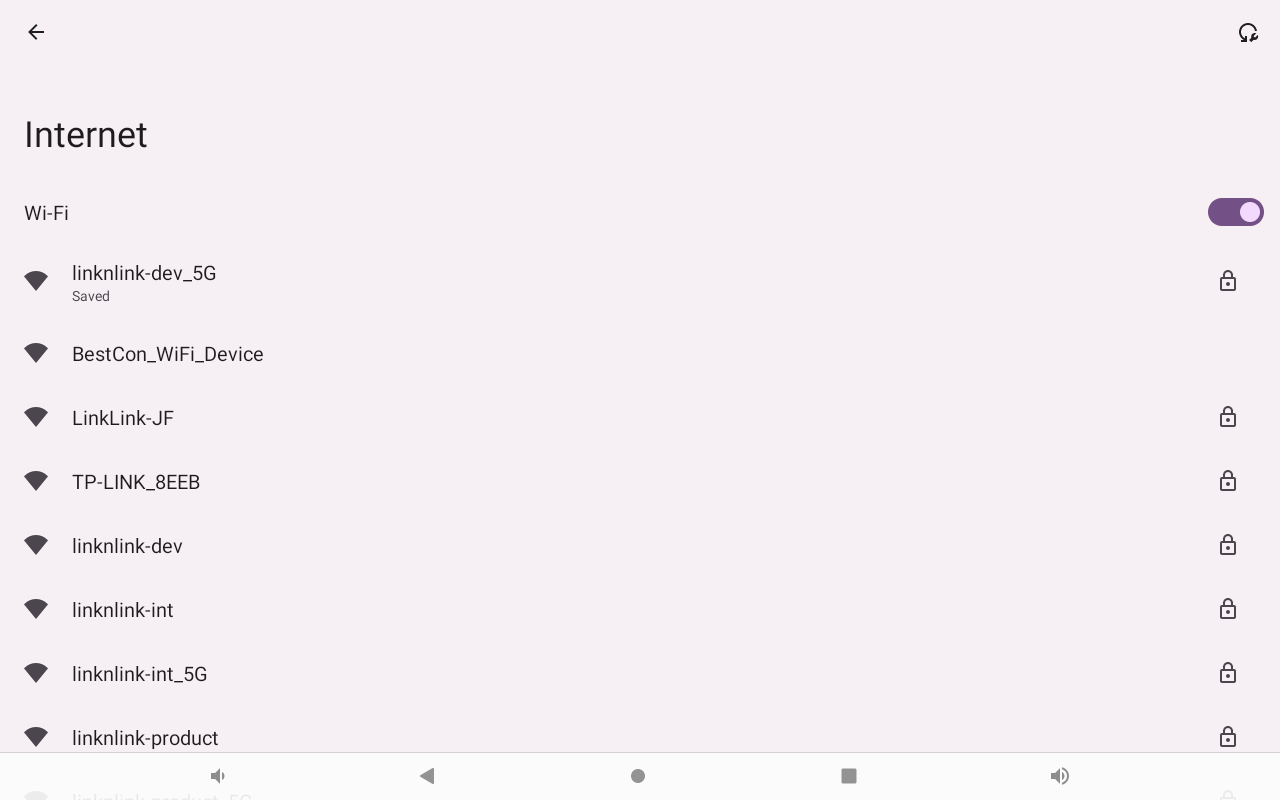
Power on the iSG and wait for about one minute. It will launch the software and prompt you to connect to the internet for first-time use.
Click **"Connect to Wi-Fi"** and select a Wi-Fi network for the iSG, or connect it to Ethernet using a USB-C adapter.
Then, agree the terms and proceed to sign-in page.
## 2. Sign-Up
You have two options for signing up for an account.
### Sign Up on iSG Directly
Click **"Sign up"** and enter your email address as your account. Then click **"Send verification code"**.
Check your email for the verification code, enter it, and set a password for your account. Finally, click **"Sign up and Sign in"** to complete the registration and sign in immediately.
### Sign Up on LinknLink App
Download the LinknLink App from the App Store or Google Play and complete the registration process within the app. You can also scan the QR code below to download the app.
## 3. Sign-In
You have two options for signing in to iSG
### Sign In on iSG Directly
Input the Email and password and click "Sign in".
### Sign In by App Scaning
If you are using the LinknLink App, simply open the app and tap **"+" > "Scan QR Code"**.
Then align the scanning frame with the QR code on the iSG and tap **Sign in** to complete the login.
## 4. Select Home
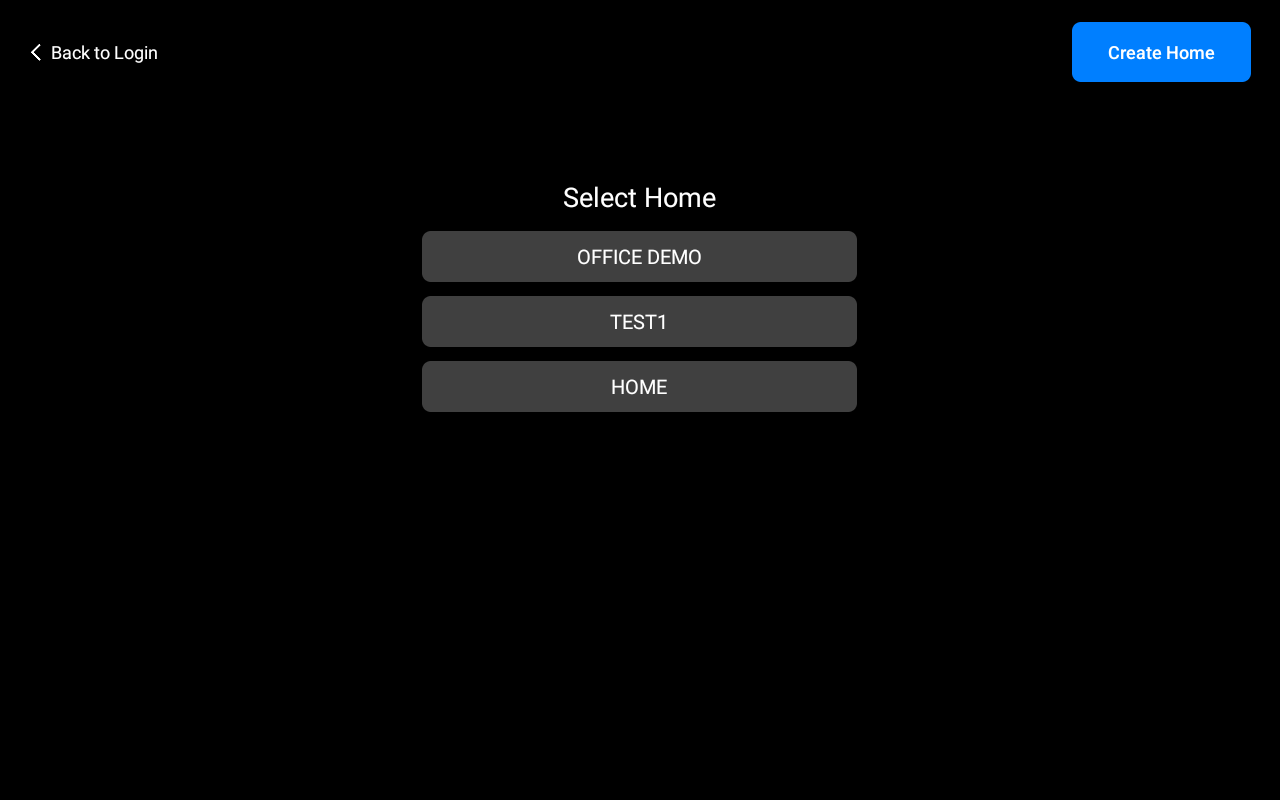
If you have multiple homes created in the LinknLink App, you will be prompted to select a home when signing in to the iSG.
If you are using iSG from scratch, you need to click "**Create Home**" to create a new home to start.