# How to Get iSG Log for Advanced Troubleshooting
## WHY AND WHEN DO WE NEED A DEVICE LOG?
A device log continuously records essential operational data for software, services, or interfaces on the device, and it may include diagnostic information for common device or function failures. In cases where standard troubleshooting methods fail, we may ask users to submit their device log to assist with advanced diagnostics for critical issues.
## WHAT NEED TO BE PREPARED FOR GETTING THE LOG?
To retrieve the device log, you'll need the following:
* A computer, either a PC (running Windows XP/7/8/10/11) or a Mac.
* A USB cable to connect your computer and iSG device (Micro USB for iSG Display, USB-C for iSG Display Max). Note: iSG Box supports network diagnostics without the need for a cable.
* Download and install the ADB driver on your PC: [Download\_Link\_1](https://drive.google.com/uc?export=download\&id=1kfIPksvyVac6crl2FlU_TprNuAMh9OB7) | [Download\_Link\_2](https://drive.google.com/uc?export=download\&id=1cp515Fx680afIUnalAsORvYD8-cK2L_f)
* Download and unzip the ADB tool on your PC: [Download\_Link\_1](https://drive.google.com/uc?export=download\&id=1rZQ6qRR5_4nwARvRCGe-RNNswioA8QH3) | [Download\_Link\_2](https://drive.google.com/uc?export=download\&id=1aO0NakM6wBeEkZEymW-d7kxucHN7qtYp)
The following instruction illustrates a scenario using PC to get log from iSG Display / iSG Display Max.
## HOW TO CONNECT ISG TO COMPUTER?
### 1/ Hardware Connection
Connect your iSG Display to your PC using the USB cable. Your PC should automatically detect the device. To verify if the device is correctly recognized, open "Device Manager" in Windows by searching for it. In the list, you should see "Android Composite ADB Interface" as shown in the screenshot below.

### 2/ Launch ADB Tool
Navigate to the ADB tool folder on your PC. Right-click on any blank space in the folder and select "Open in Windows Terminal." A command line window will open in this folder.
Alternatively, you can launch the ADB tool by right-clicking the Windows Start icon, selecting "Run," typing "cmd," and pressing Enter. Then use the "cd" command to navigate to the folder (basic knowledge of command line tools is required).
### 3/ Check Connected iSG
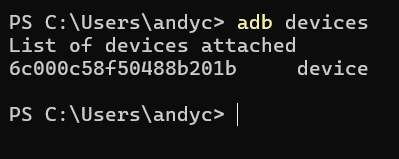
Use the following command to list the devices connected to your PC:
`adb devices`
If multiple devices are connected, use the command:
`adb disconnect XXX`
This will disconnect unnecessary devices until only the target device is listed.
## HOW TO RETRIEVE THE DEVICE LOG TO PC?
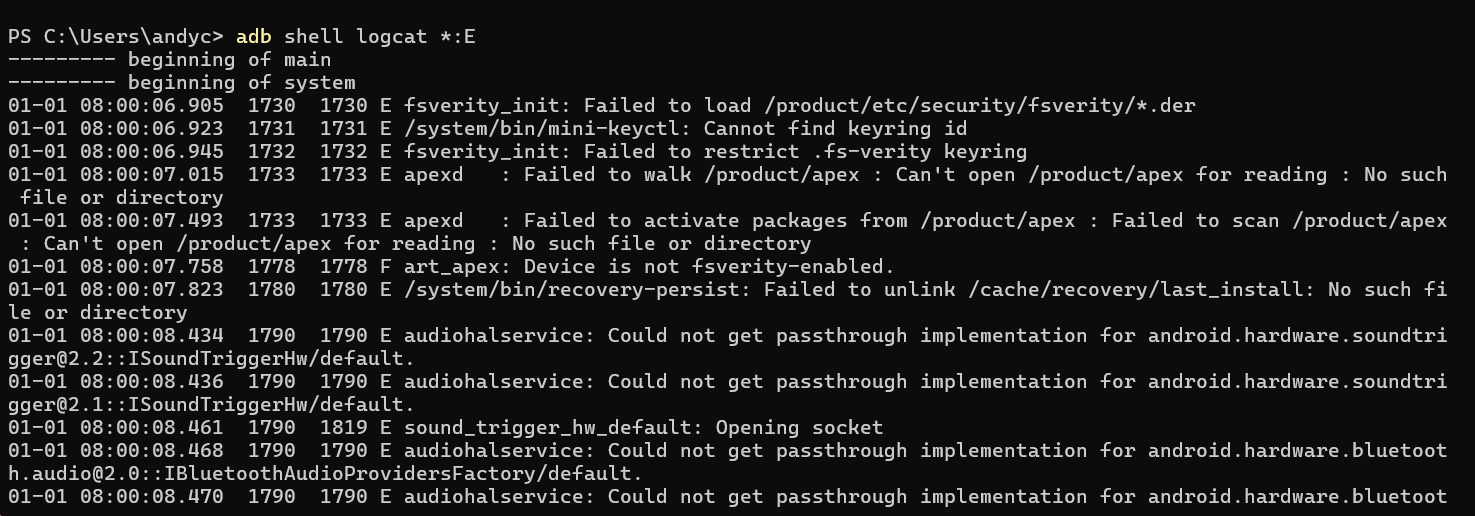
To display the device log, use the following command:
`adb shell logcat *:E`
This command will continuously print the log until you terminate the process. To stop it, press **Ctrl + C**.
To save the log directly to the root directory of drive D on your PC, use the command:
`adb shell logcat *:E > D:/log.txt`
(You can specify any location on your PC to save the log file.)
Once the log is saved, you can send the .txt file to our support team for advanced diagnostics.
---
# Agent Instructions: Querying This Documentation
If you need additional information that is not directly available in this page, you can query the documentation dynamically by asking a question.
Perform an HTTP GET request on the current page URL with the `ask` query parameter:
```
GET https://kb.linknlink.com/isg/isg-es/faq/others/how-to-get-isg-log-for-advanced-troubleshooting.md?ask=
```
The question should be specific, self-contained, and written in natural language.
The response will contain a direct answer to the question and relevant excerpts and sources from the documentation.
Use this mechanism when the answer is not explicitly present in the current page, you need clarification or additional context, or you want to retrieve related documentation sections.