> For the complete documentation index, see [llms.txt](https://kb.linknlink.com/isg/llms.txt). Markdown versions of documentation pages are available by appending `.md` to page URLs; this page is available as [Markdown](https://kb.linknlink.com/isg/settings/screen-saver-locker.md).
# Screen Saver/Locker
After setting the screen saver in iSG, the screen will automatically enter the screen saver mode if there is no operation within the set time period. Touching the screen will bring you back to the last page you were operating on.
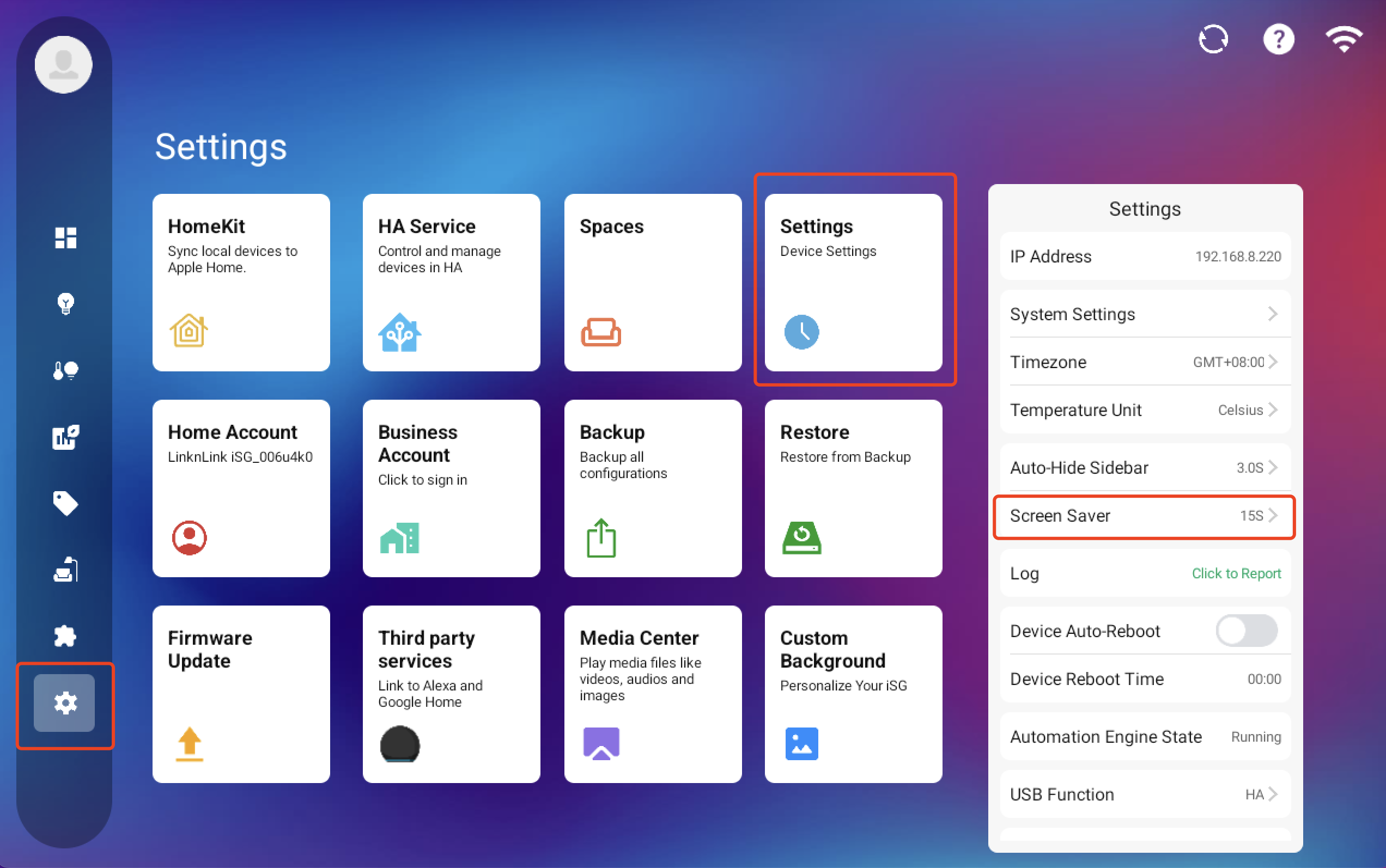
Go to Settings - Settings - Screen Saver, setup time
### **How do I change the screen saver picture?**
1\) Log in to the LinknLink App, select iSG at the bottom of the App, and then choose Media Center.\

2)Set up the screen saver, click on the "..." in the top right corner, and select ScreenSaver. 
3)Select photos from your phone's album to add to the screensaver.