> For the complete documentation index, see [llms.txt](https://kb.linknlink.com/isg/llms.txt). Markdown versions of documentation pages are available by appending `.md` to page URLs; this page is available as [Markdown](https://kb.linknlink.com/isg/settings/system-updates/force-update.md).
# Force Update
Sometimes you may need to update the software even if you cannot enter iSG due to critical issues. In such cases, you can perform a **force update** through the Android system. This process does **not** require logging in, and in some cases does **not** require a network connection.
The force update method only applies to **iSG** and **Container** software.
### 1. Download APK File(s) to USB Drive
Download the required APK file(s) to a USB drive. Please refer to [**iSG Downloads**](/isg/settings/system-updates/local-update/isg-downloads.md) and [**Container Downloads**](/isg/settings/system-updates/local-update/container-downloads.md). It is recommended to verify the MD5 checksum of the files before updating.
### 2. Access File Manager
To perform a force update, you need to access the system’s file manager app.
#### On iSG Box:
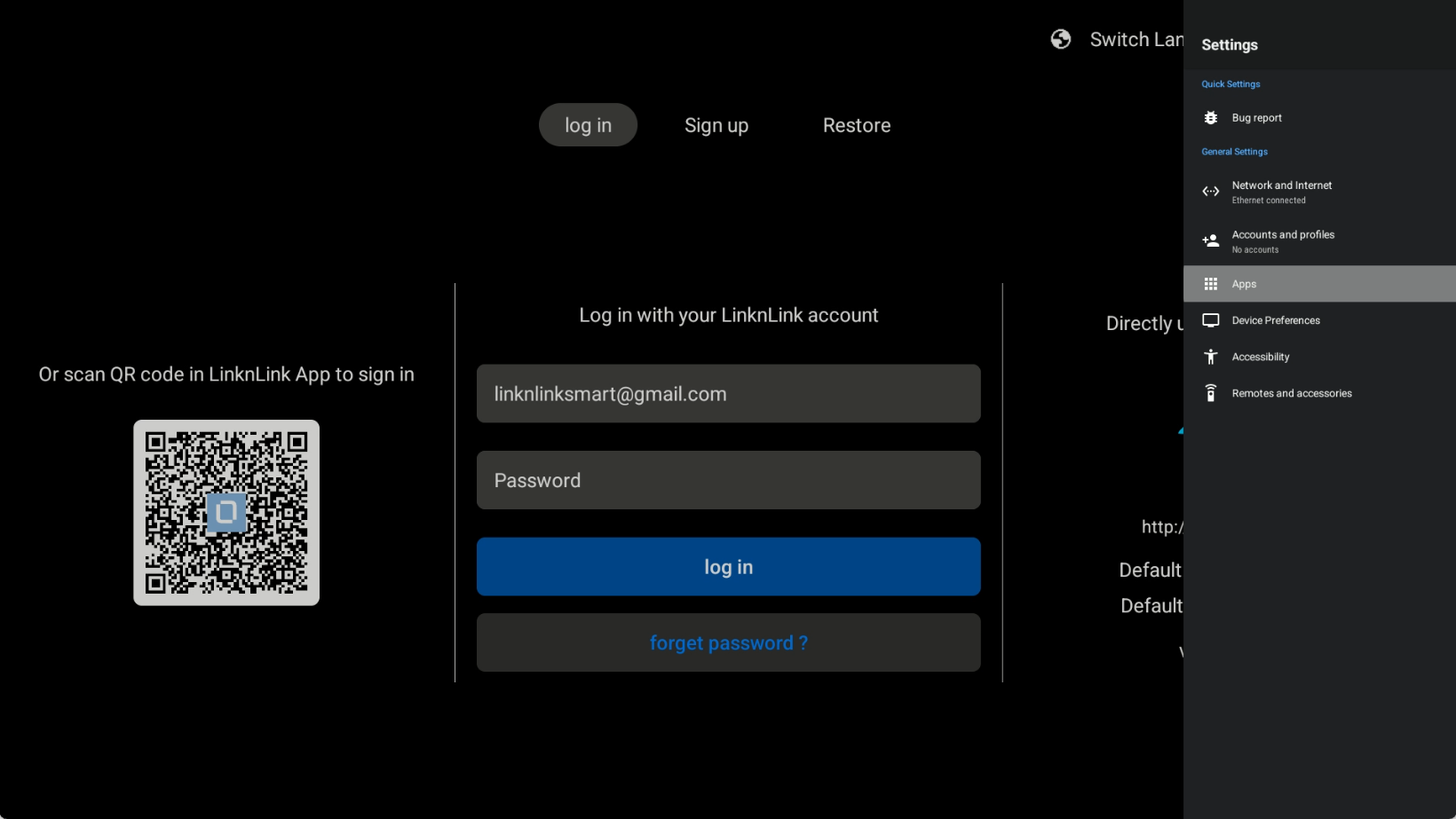
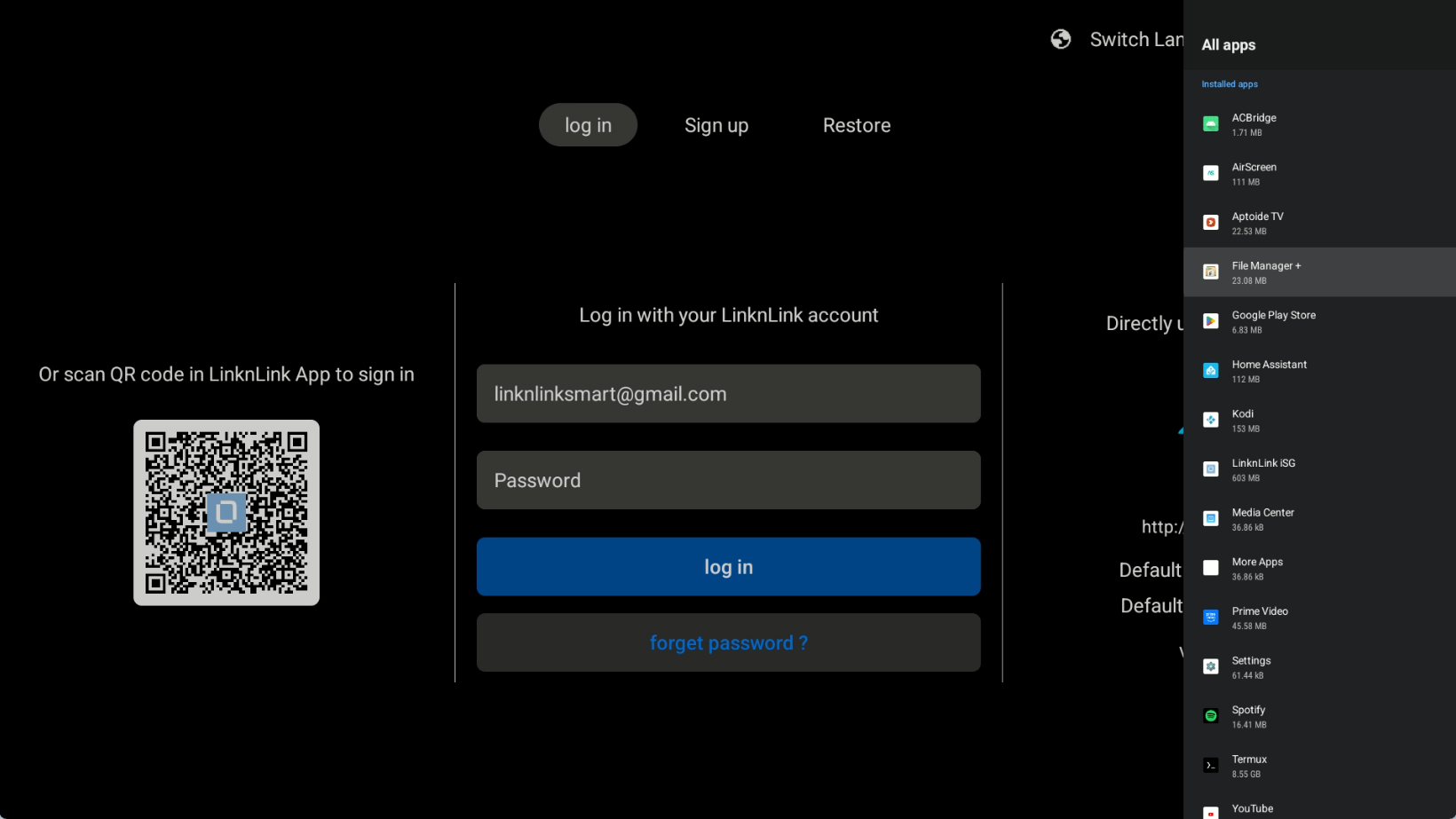
Press the **Settings** button on the remote control. The system menu will appear on the right side. Navigate to:\
**Apps > See all apps**, then locate and open **File Manager+**.
#### On iSG Display Max
Long-press the **Power** button on the back of the device and select **Settings**. Then navigate to:\
**Storage > Documents and other**.
### 3. Install Update
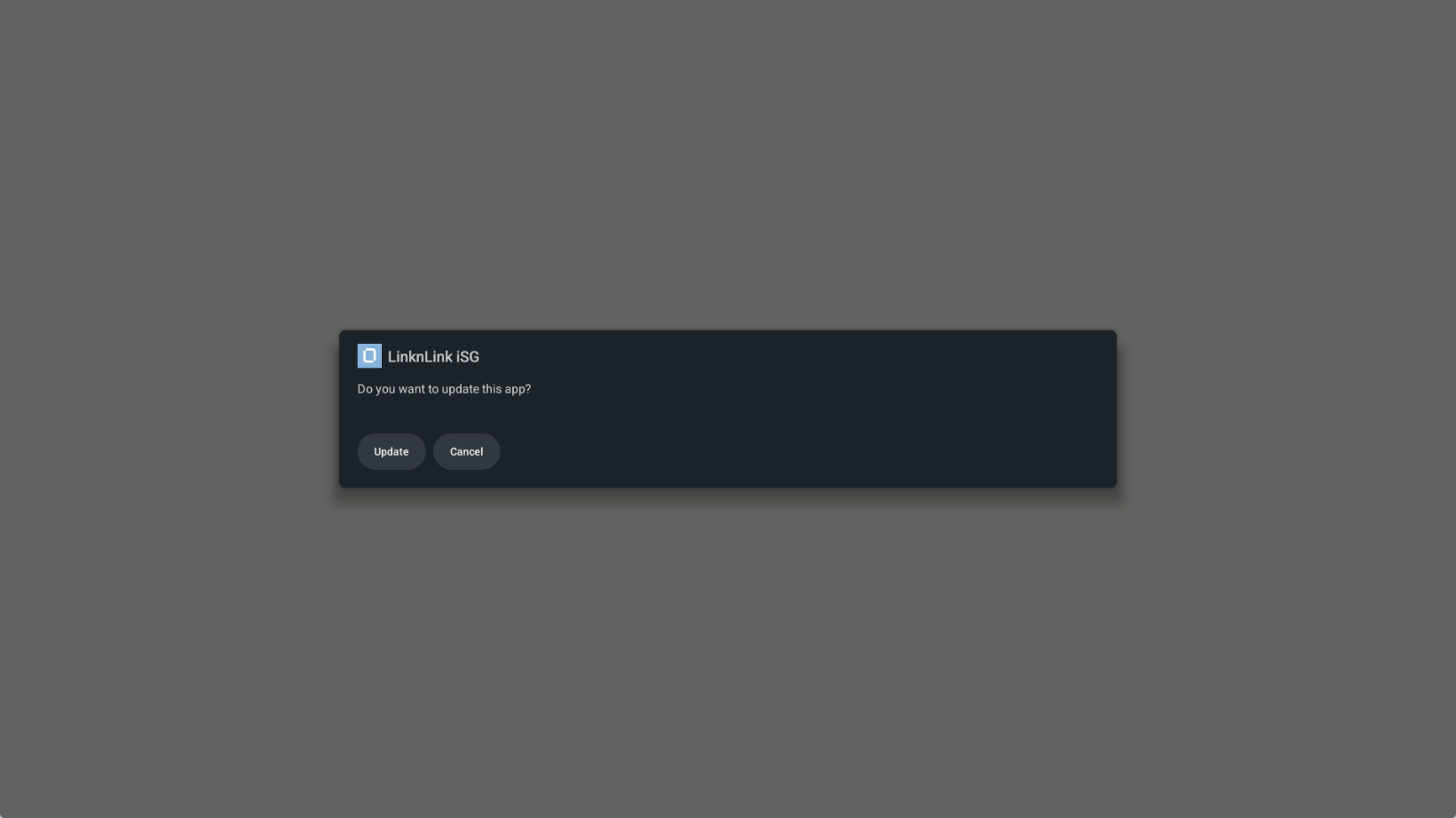
Find the update file (APK) on your USB drive and select it to launch the installer. When prompted, choose **Package Installer** and select **Always**.
After the update is installed, click **OPEN** to launch iSG.