> For the complete documentation index, see [llms.txt](https://kb.linknlink.com/isg/llms.txt). Markdown versions of documentation pages are available by appending `.md` to page URLs; this page is available as [Markdown](https://kb.linknlink.com/isg/using-isg/add-ons/optional-utility-add-ons/cloudflare.md).
# Cloudflare
By utilizing CloudFlare, you can securely access the Home Assistant built in iSG remotely through a domain name, achieving fast and secure remote control.
1\. Open your computer's web browser, navigate to the CloudFlare official website ([https://www.cloudflare.com](https://www.cloudflare.com/)), and complete the registration process to log in to your account.
2. Add a domain name. If you already have a domain name, click "Add a domain". If you don't have a domain name, you can also purchase a domain name in CloudFlare. The domain name purchased in CloudFlare will be automatically added to the Domain list.
It is recommended that individual users choose the free plan
3. In iSG Add-on, select CloudFlare and input domain you will use for remote access iSG HA.
Note:
1)Use the domain name you registered with Cloudflare,such as: linknlink.org
2\) Add the subdomain in front of the domain name, such as : abcd
3\) The last thing you need to enter is the synthesized subdomain. such as: adcd.linknlink.org
4. Click install CloudFlare
During the installation process, the system will automatically pop up the authorization page through Opera. You need to log in to your CloudFlare account and click Authorize.
Click "Authorize CloudFlare Tunnel", a page will pop up, click your domain name and activate it.
5. After successful authorization, back to CloudFlare will automatic finish intallation
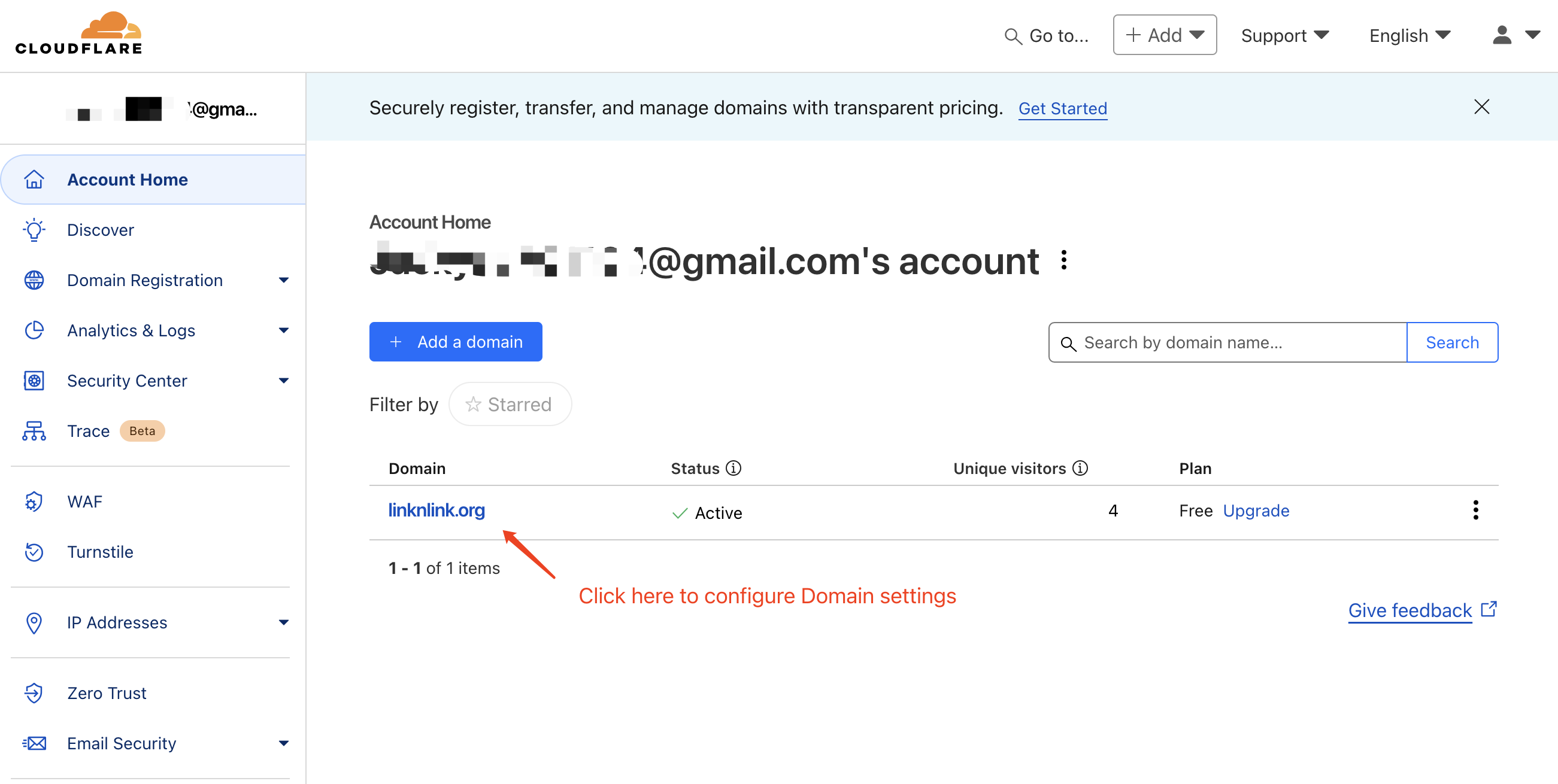
6. Log in to CloudFlare through a computer browser and click on the domain name to configure it
7. In DNS - Records, you can see Record, indicating that iSG CloudFlare has been added successfully.
8. In the iSG built-in home assistant, use File Editor to add the following information:
http: server\_port: 8123
use\_x\_forwarded\_for: true
trusted\_proxies:
\- 127.0.0.1
9. Restart Home Assistant, and then you can access it remotely via YourDomain