> For the complete documentation index, see [llms.txt](https://kb.linknlink.com/isg/llms.txt). Markdown versions of documentation pages are available by appending `.md` to page URLs; this page is available as [Markdown](https://kb.linknlink.com/isg/using-isg/devices/adding-devices/add-zigbee-devices.md).
# Add Zigbee Devices
The Zigbee in iSG comes in two versions: iSG Version and ZHA Version.
**iSG Version**: Works on iSG software for easier use but may not work well with some brands (ex. Aqara)
**ZHA Version**: Operates exclusively with Home Assistant (HA) for the best compatibility.
The default setting from the factory is the iSG Version. And the iSG Version can be upgraded to the ZHA Version.
*After updating the Zigbee firmware to the ZHA version, the Zigbee radio will only be compatible with Home Assistant and cannot be reverted to the previous iSG version. Please consider this carefully before updating.*
[Zigbee Dongle Firmware ](broken://pages/2VERjcJAp0pv9P3hsh00)
[Built-In Zigbee Firmware](broken://pages/cthkBPmuX9pU63XMFhcV)
The following text describes the usage method of the iSG Version Zigbee. (If you want to view the usage method for the ZHA Version, please refer to [this](/isg/advanced-features/home-assistant/add-devices-in-home-assistant/ha-official-integrations/zha-integration.md).)
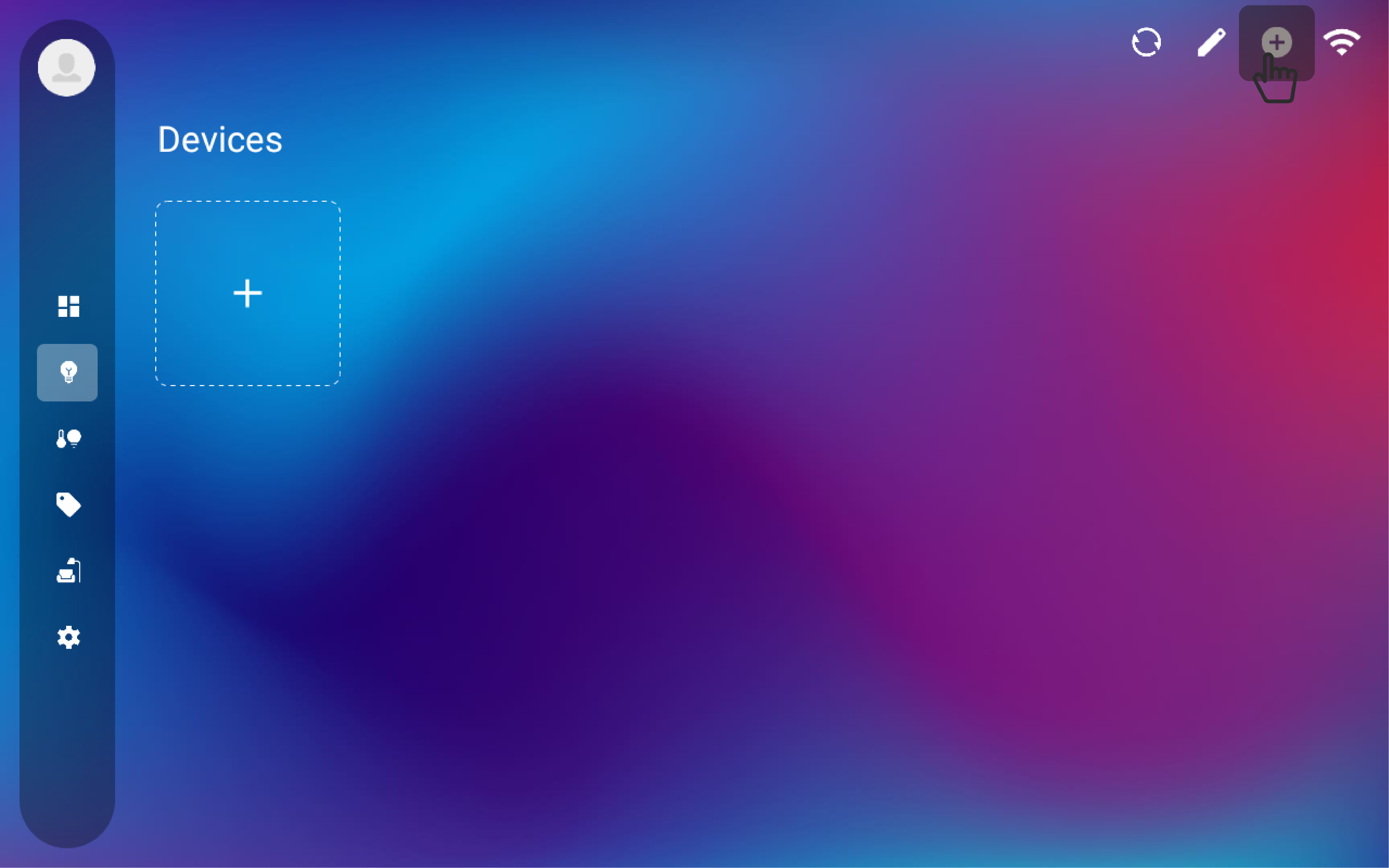
1. Click the left edge of the screen, select "Devices" from the menu, and then click the "+" in the upper right corner to add a device.
add a device
2. In the pop-up window, select the "zigbee" brand, and then choose the corresponding device type based on your zigbee device.
choose device type
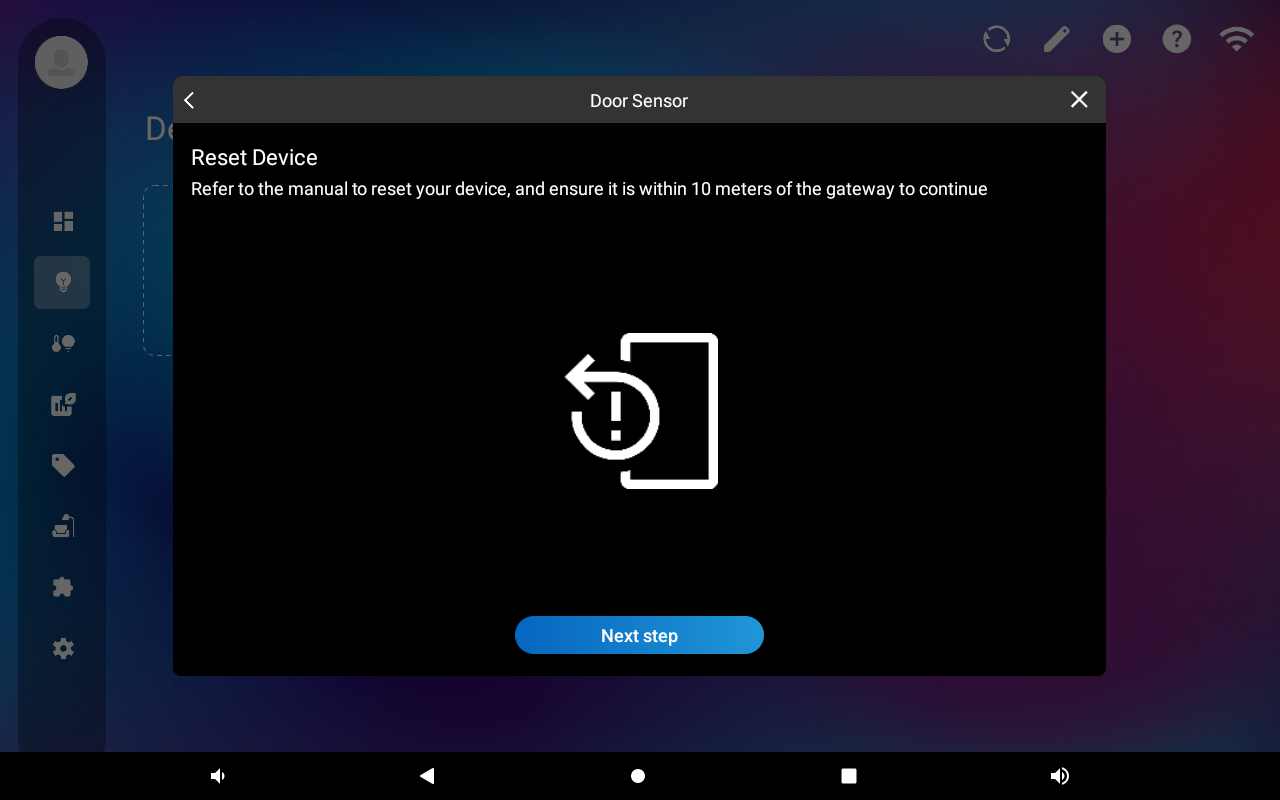
reset
configuration
Place the successfully configured devices into the corresponding spaces.